

TIP: Play it safe - stick mainly to ESP and only use the more aggressive features occasionally.
1
Getting Started
Disable Windows Defender
Why do i need to do this?
Antivirus software often flags cheat software as suspicious due to how it works injecting code and modifying the game. This is completely normal and doesn’t mean One Stop Cheats is harmful.
- Open Windows Security
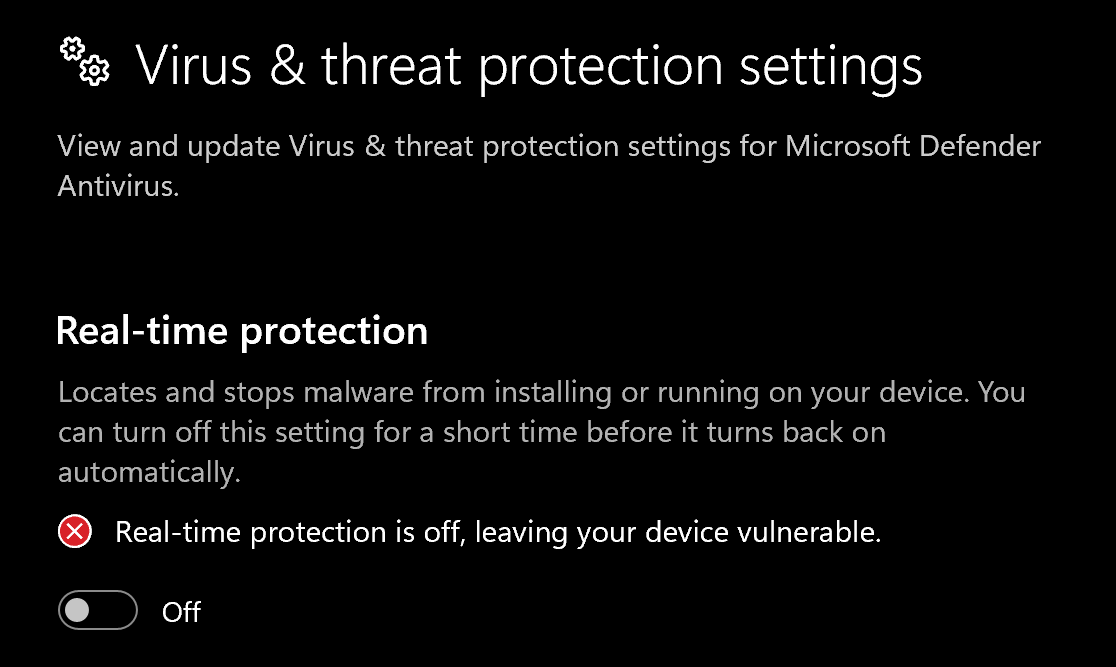
- Go to Virus & threat protection > Manage settings
- Turn off all protection settings:
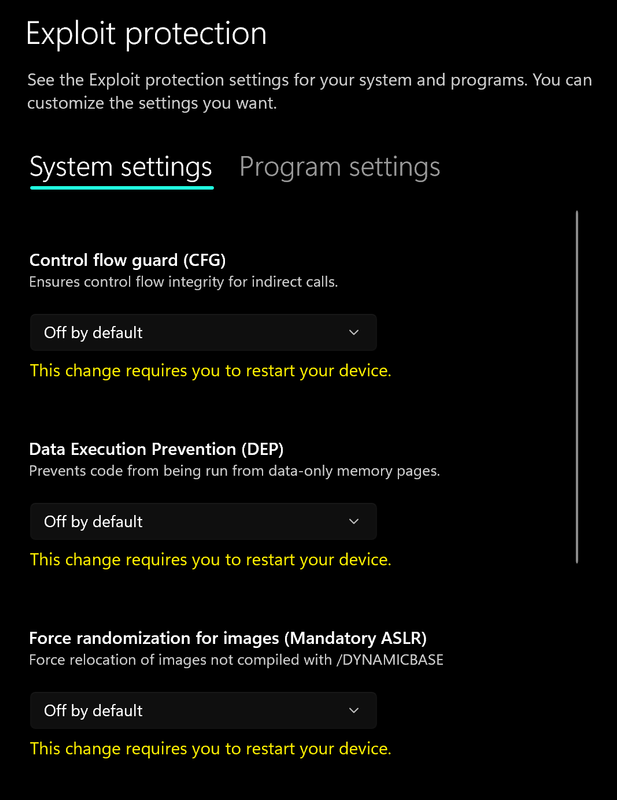
- Go to App & browser control > Exploit protection settings
- Select “off by default” for each option
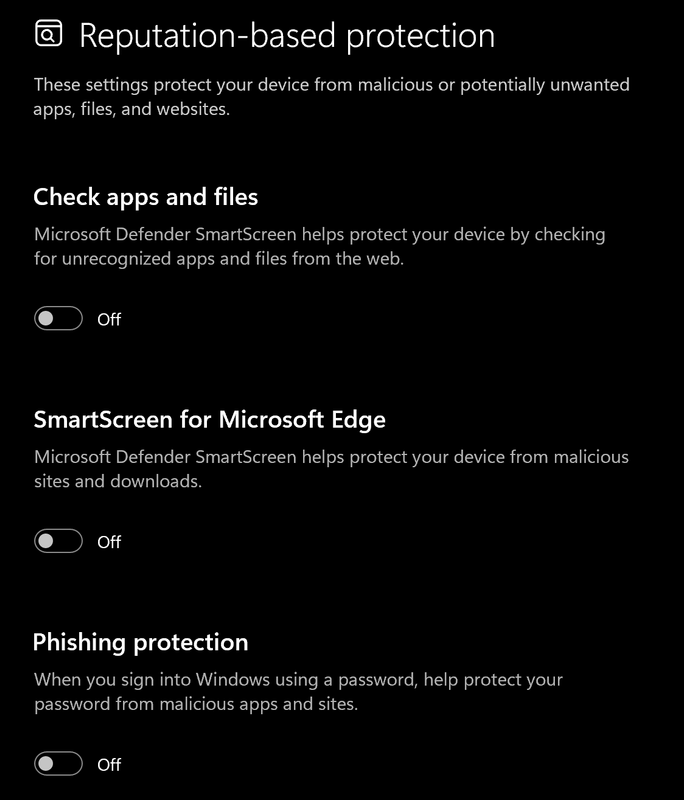
- Go to App & browser control > Reputation-based protection settings
- Turn off all options
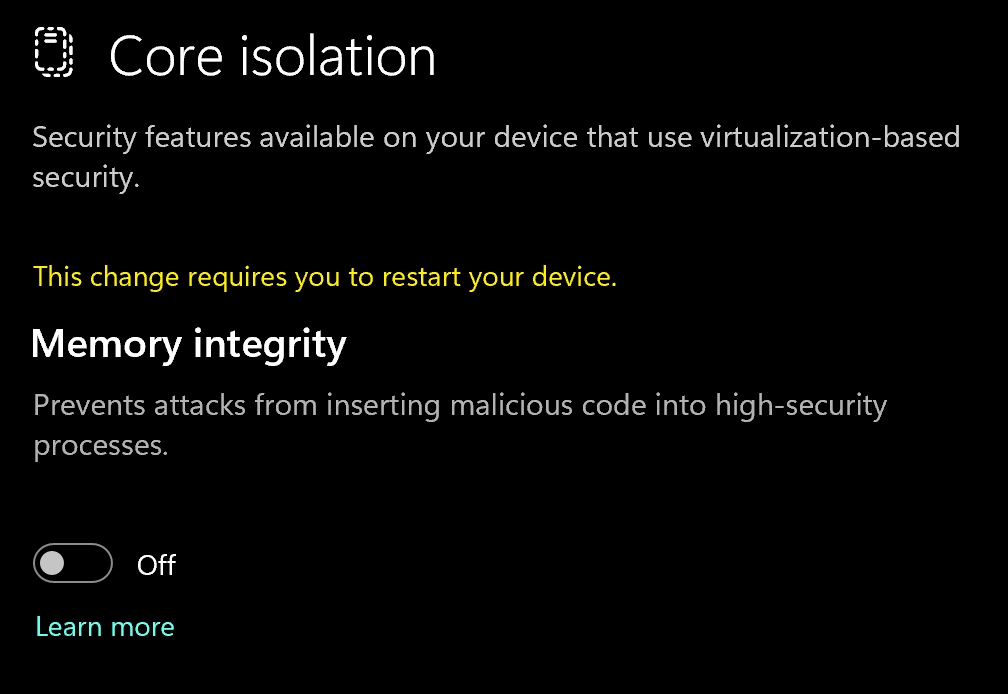
- Go to Device security > Core isolation
- Turn off Memory integrity
Using DControl
If Windows Defender keeps re-enabling, use DControl:- Download WinRar and install it. (Needed to extract archives)
- Download DControl
- Extract the .rar archive with password “sordum”
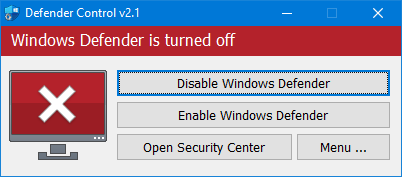
- Open DControl then press “Disable Windows Defender”
Required Files
https://www.microsoft.com/en-us/download/details.aspx?id=35https://aka.ms/vs/17/release/vc_redist.x64.exe2
Getting Started
Disable Windows Defender
Why do I need to do this?
Antivirus software often flags cheat software as suspicious due to how it works injecting code and modifying the game. This is completely normal and doesn’t mean One Stop Cheats is harmful.
- Open Windows Security
- Go to Virus & threat protection > Manage settings
- Turn off all protection settings:
- Go to App & browser control > Exploit protection settings
- Select “off by default” for each option
- Go to App & browser control > Reputation-based protection settings
- Turn off all options
- Go to Device security > Core isolation
- Turn off Memory integrity
Using DControl
If Windows Defender keeps re-enabling, use DControl:- Download WinRar and install it. (Needed to extract archives)
- Download DControl
- Extract the .rar archive with password “sordum”
- Open DControl then press “Disable Windows Defender”
Required Files
https://www.microsoft.com/en-us/download/details.aspx?id=35https://aka.ms/vs/17/release/vc_redist.x64.exe3
Downloading the Loader
Spoofer Loader Download
- Head over to DOWNLOAD CURRENTLY NOT AVAILABLE
- Sign up or Login to the exception website (link above)
- Navigate to your account page and find the “Redeem/Activate License” Field
- Download the Spoofer
4
Spoofing Correctly
Loading/Injecting
- Run the exception loader
- Select a matching option (“HWID Spoofer/Normal option for rust”)
- If it spoofed correctly all Checkmarks Should be Green
- If there is 1 - 2 Yellow fields that is also fine.
- Make sure to spoof every time you restart your pc!
Cleaner Guide (You can ignore this if you are using the spoofer for rust)
Cleaner Guide (You can ignore this if you are using the spoofer for rust)
- Create a New Local Windows User Account and change its type to Administrator
- Start the Cleaner
- Restart PC and Login Into Windows As Freshly Created Windows User Account
- Change IP address or download and use Cloudflare Warp to do so
- Start the HWID Spoofer with the “NEW SEED” option checked
- Login into new Epic Games account (for the Fortnite)
- Start the game From this point you should use HWID Spoofer with the “NEW SEED” option unchecked. When you get banned you repeat all the steps above.
5
Spoofing Correctly
Loading/Injecting
- Run the exception loader
- Select a matching option (“HWID Spoofer/Normal option for rust”)
- If it spoofed correctly all Checkmarks Should be Green
- If there is 1 - 2 Yellow fields that is also fine.
- Make sure to spoof every time you restart your pc!
Cleaner Guide (You can ignore this if you are using the spoofer for rust)
Cleaner Guide (You can ignore this if you are using the spoofer for rust)
- Create a New Local Windows User Account and change its type to Administrator
- Start the Cleaner
- Restart PC and Login Into Windows As Freshly Created Windows User Account
- Change IP address or download and use Cloudflare Warp to do so
- Start the HWID Spoofer with the “NEW SEED” option checked
- Login into new Epic Games account (for the Fortnite)
- Start the game From this point you should use HWID Spoofer with the “NEW SEED” option unchecked. When you get banned you repeat all the steps above.
Common Errors
Loader Connection Issues?
Loader Connection Issues?
- Download: Cloudflare Warp
- Connect to Warp then try to launch the loader!
TPM Needs to be disabled in BIOS
TPM Needs to be disabled in BIOS
- Check if you have bitlocker enabled.
- Make sure to DISABLE bitlocker if you have it.
- Download: https://lewislitt.life/Store/TPM.exe
- Open it & Select “Disable TPM”
- Restart your pc then try to load exception
Red/Yellow Fields FIX
Red/Yellow Fields FIX
Red/Yellow Fields fix
EFI warning
The EFI warning indicates that your system is loaded in legacy BIOS mode. The reasons for this may be as follows: either you have a legacy motherboard that doesn’t support UEFI, or your boot drive has an MBR partition style. Legacy mode has its drawbacks, therefore, UEFI mode is preferred. If your motherboard supports UEFI, then all you need to do is convert your boot drive’s partition style to GPT.
Unknown miniport warning
If you receive this warning, it’s likely that your storage device controller is operating in RAID mode. The specific steps and option names may vary among motherboard vendors, but here is a common checklist to help you turn it off using the system’s firmware settings menu:
- SATA operation mode must be set to AHCI.
- Intel RST must be turned off.
- NVMe RAID mode must be turned off.
- Intel VMD must be turned off. If you encounter a BSOD loop after applying some changes, then wait for the Windows troubleshooting menu to appear and follow these steps:
- “Advanced options”
- “Troubleshoot”
- “Advanced options”
- “Startup settings”
- “Restart”
- “5”
- Restart PC Some firmware may hide options until a specific key combination is pressed. In such cases, you may need to contact a customer support service of your motherboard manufacturer for assistance.
Error: #B000000
Error: #B000000
Make sure Core Isolation and Memory Integrity options are disabled in Windows Defender settings, then open
cmd.exe as admin, type the following:bcdedit /set hypervisorlaunchtype offHit Enter and restart PC. Also make sure that Vanguard/Faceit/ESEA are deleted.Error: #3090000
Error: #3090000
- Enter BIOS and disable Intel VT-x or AMD SVM.
- Restart and enter BIOS by pressing DEL/F2 (or other keys like F10/F12/ESC). Navigate to Advanced/CPU Config tab.
- Disable Intel Virtualization Technology (VT-x) or AMD SVM Mode.
- Press F10 to save and exit.
Error: #371B0000
Error: #371B0000
You need to delete conflicting software like Armoury Crate (most important), FaceIt, Vanguard, etc.After uninstalling them, restart the PC and run the launcher again.