

TIP: Play it safe - stick mainly to ESP and only use the more aggressive features occasionally.
1
Getting Started
Disable Windows Defender
Why do I need to do this?
Antivirus software often flags cheat software as suspicious due to how it works injecting code and modifying the game. This is completely normal and doesn’t mean One Stop Cheats is harmful.
- Open Windows Security
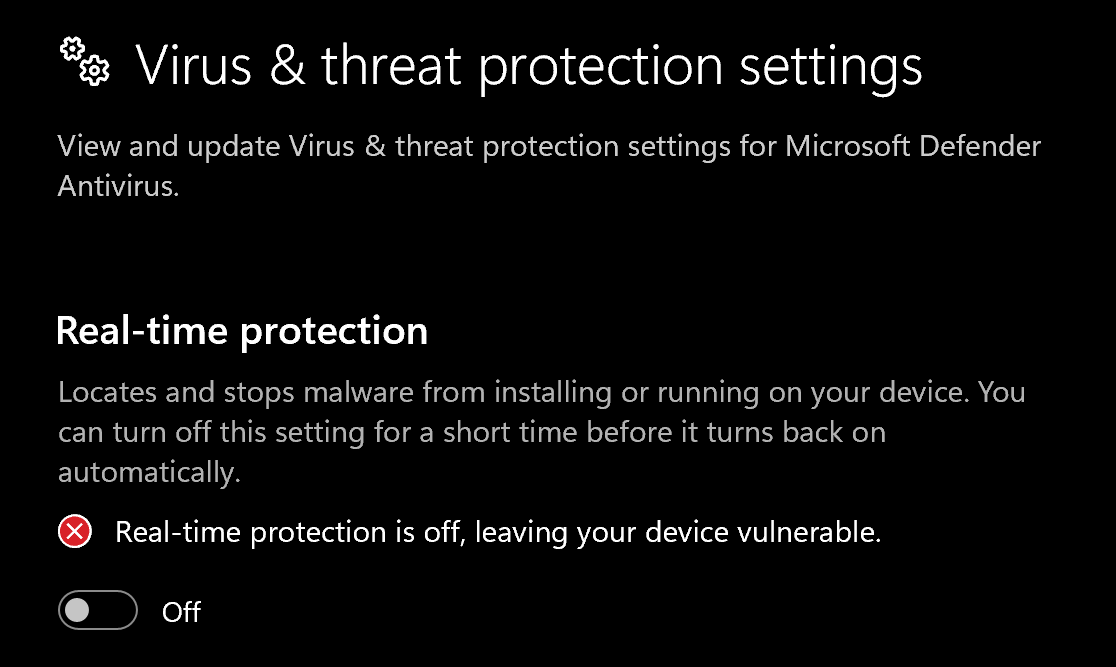
- Go to Virus & threat protection > Manage settings
- Turn off all protection settings:
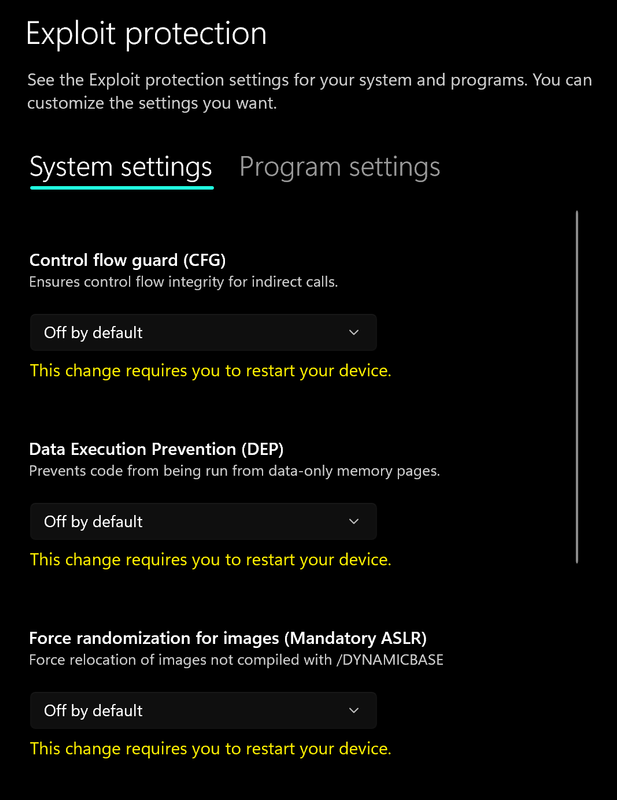
- Go to App & browser control > Exploit protection settings
- Select “off by default” for each option
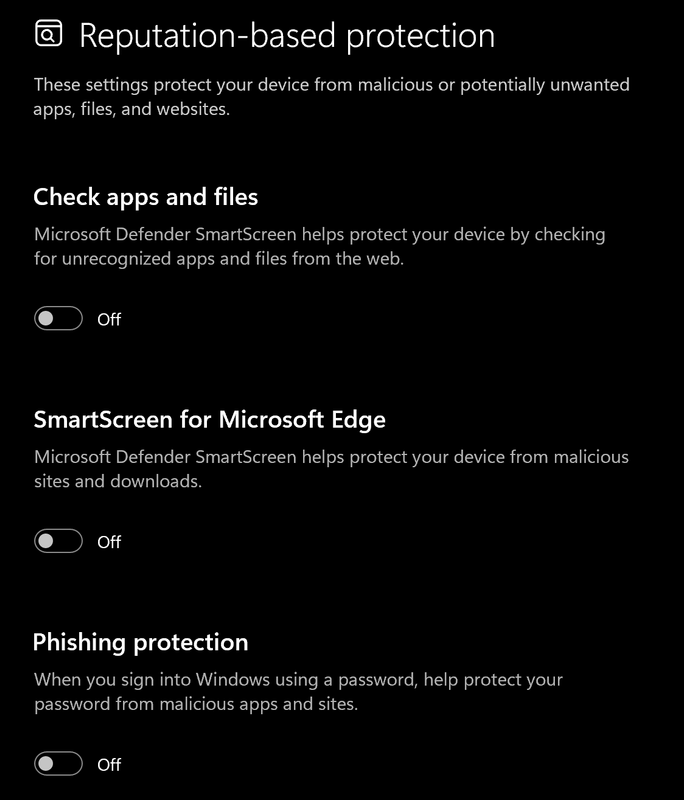
- Go to App & browser control > Reputation-based protection settings
- Turn off all options
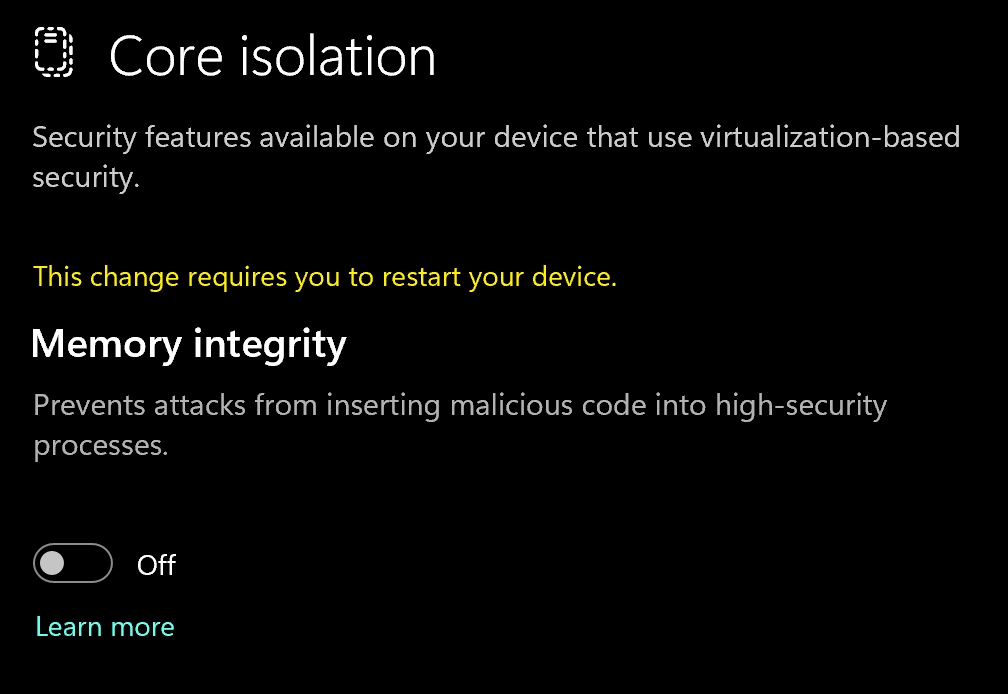
- Go to Device security > Core isolation
- Turn off Memory integrity
Using DControl
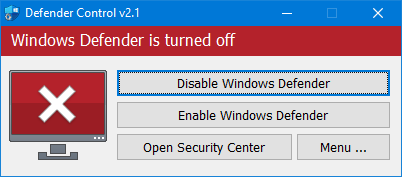
If Windows Defender keeps re-enabling, use DControl:- Download WinRar and install it. (Needed to extract archives)
- Download DControl
- Extract the .rar archive with password “sordum”
- Open DControl then press “Disable Windows Defender”
Required Files
https://www.microsoft.com/en-us/download/details.aspx?id=35https://aka.ms/vs/17/release/vc_redist.x64.exe2
Setting up the Cheat
Overlay Setup
Install SteelSeries GG from the link below:https://steelseries.com/gg/downloads/gg/latest/windows
3
Downloading the Cheat
4
Injecting the Cheat
Loading/Injecting
- Run the Loader
- Register or Sign Into an existing account
- Enter your license/key into the loader.
- Inject the cheat, it will tell you when you can launch your game!
Common Errors
Disable System TPM
Disable System TPM
- Open PowerShell as Administrator (search “PowerShell” in the Windows search bar).
- Run this command:
Get-CimInstance Win32_BaseBoard | Select-Object Manufacturer,Product - Copy your Product name and Google “How To Disable TPM On [Your Product]”, then follow the YouTube guide.
Disable System Secure Boot
Disable System Secure Boot
- Open PowerShell as Administrator (search “PowerShell” in the Windows search bar).
- Run this command:
Get-CimInstance Win32_BaseBoard | Select-Object Manufacturer,Product - Copy your Product name and Google “How To Disable Secure Boot On [Your Product]”, then follow the YouTube guide.
Infinite Restart Loop
Infinite Restart Loop
Do all 3 steps below, then restart your PC and try again.
- Go to Settings → System → Core Isolation and toggle off Memory Integrity, then restart.
- Open Registry Editor and navigate to
HKEY_LOCAL_MACHINE\SYSTEM\CurrentControlSet\Control\DeviceGuard. Open EnableVirtualizationBasedSecurity and set its value to0. - Open CMD as Administrator and run:
bcdedit /set hypervisorlaunchtype off
EAC: Forbidden Tool
EAC: Forbidden Tool
- Open Steam
- Right click your Rust -> Properties -> Installed Files
- Then Press “Verify integrity of game files”
- Reinject and see if that fixes it